

Instruments and presets
Choose instruments, manage local content, and reuse factory or user presets.
A MIDI track begins with an instrument. Open Device view to choose the source and shape it alongside the track’s effects.
Instrument families
Sympose includes three first-party instrument types, shown as tabs in the instrument browser:
- Synth for programmable electronic sounds, with factory patches and your own user presets
- Sampler for recorded instruments such as pianos, guitars, strings, and brass, grouped by category
- Drums for drum kits mapped across MIDI pitches and played from a pad grid
The instrument type determines which controls, presets, and automation targets are available.
Browse and install content
Select the instrument name in Device view to open the instrument browser. Type in Search sounds, switch between the Synth, Sampler, and Drums tabs, or step through sounds with the previous and next arrows. Use a row’s audition button to hear a sound before you choose it.
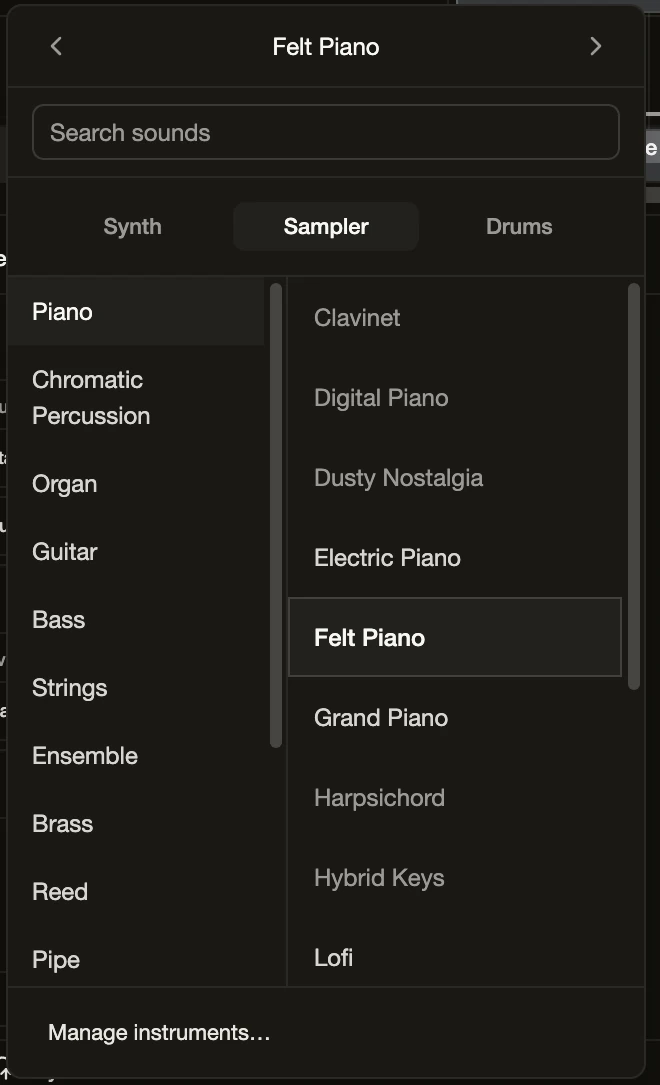
Some instrument content is bundled; other content downloads to this computer. Choosing an instrument that is not downloaded yet asks whether to download it and use it on the track. Manage instruments… at the bottom of the browser opens the Instruments page, which shows each instrument as Installed, Not installed, Needs repair, or Downloading, and lets you download or remove downloads, install the starter pack, or refresh the catalog.
If a project uses a downloaded instrument that is missing, Sympose tells you that the track will be silent during playback and offers to download it. It does not quietly swap in a different sound.
Factory presets
Factory presets are immutable starting points. Synth factory patches are grouped as Bass, Lead, Pad, Pluck, Keys, and FX. Applying one writes the complete compatible device state needed to reproduce the sound.
Reset in the Device header asks you to confirm when it would discard changes. On Synth, Reset loads the Init sound rather than restoring the factory baseline. On Sampler and Drums, Reset returns the instrument controls to their defaults and keeps the selected instrument.
User presets
User presets are available for Synth sounds. Save the current Synth sound when you want to reuse it:
- Save in the Synth header saves a new user preset, or overwrites the selected user preset when you have changed it. Save current as new… in the browser’s User tab always saves an independent copy.
- Choose a name and, optionally, a category in the save dialog.
- Find presets in the User tab of the Synth browser, where they stay separate from the Factory categories.
- Use a preset’s menu to rename, duplicate, export, or delete it.
- Apply a saved preset on any track or in any project.
Applying a preset that depends on an unavailable sample reports the problem; Sympose does not silently choose a replacement.
Saving a synth that uses a generated or project sample copies those bytes into the local user library. Applying that preset into a project creates a new project sample — it does not keep playing from the library.
Export and import each open your operating system’s file dialog, so nothing leaves or enters the library without your choice. Use a preset’s Export menu item to save a .musepreset file, and Import… in the User tab to bring one in from another machine. Import always creates a new library entry and never overwrites an existing preset.
Agent changes
Sympose uses the same instrument and preset identities as the Device interface.
- Applying a factory or user preset is a project change (undoable, syncs with the project).
- Saving, renaming, duplicating, or deleting a user preset is a local library change. It is not on the project undo stack.
- A request such as “use a softer acoustic piano” assigns through the normal device path. “Save this synth as Warm Bass” writes the local user-preset library, then you can apply that preset on another track or project.
Sympose can list your user presets, so you can ask it what is saved before changing anything. Select Stop in the composer to cancel a run, and use the Changes tab to undo project changes from a turn; see Review and revise agent work. Library changes are not part of project history, so rename, duplicate, or delete a user preset from its menu if you change your mind. When you ask Sympose in chat to overwrite or delete a user preset, it does so without asking first, and a deleted preset cannot be restored. Export presets you want to keep.
Learn about Synth or sampler and drum instruments.