

Work with the Sympose agent
Give Sympose useful direction, choose an appropriate model, and collaborate against the current project.
Sympose works against the real state of your project. It can inspect the arrangement, tracks, clips, devices, effects, automation, transport, assets, and export readiness before deciding what to change. It can also run a local measurement of levels and loudness on a clip, track, or the mix. That is a numeric analysis, not listening.
Give direction, not implementation instructions
Describe the musical outcome, the relevant scope, and anything that must remain unchanged:
- “Make the second chorus hit harder, but keep the vocal melody.”
- “Humanize the verse drums without moving the downbeats.”
- “Use a warmer bass sound and leave the notes alone.”
- “Explain why this transition loses energy before changing anything.”
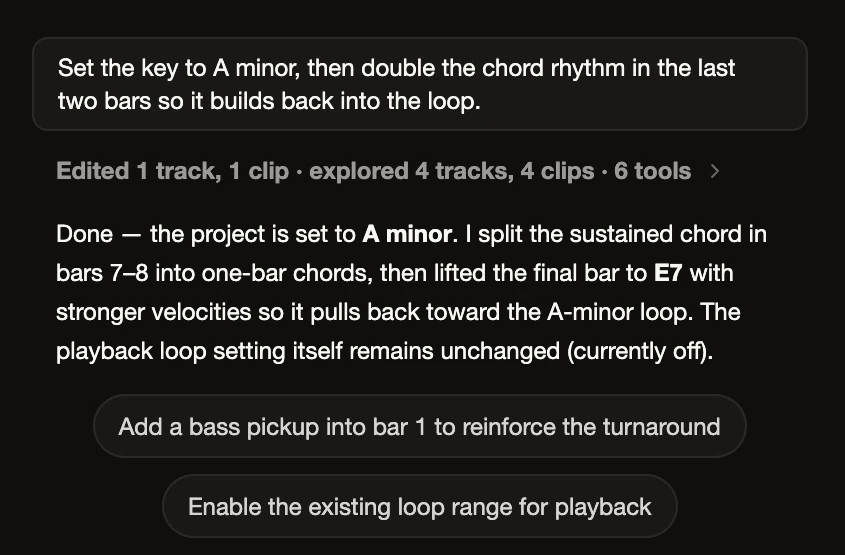
Names and selections help Sympose target the correct material. Select the relevant clip or use clear track and clip names when a request could be ambiguous.
Use the project as context
You can begin from language, performance, imported material, or direct edits. Sympose reads the latest project state, including changes you made after an earlier run. You do not need to paste note data or device settings into chat.
Scope the work
There are no separate agent modes: every conversation can discuss, explain, and edit. Say what you want in the request. Ask for an explanation or an approach first when you want to agree on direction before anything changes, and name the tracks or sections that are off limits.
For multi-step work, Sympose shows a Tasks list in the chat so you can follow what it is doing. Sympose may ask a focused question when taste or ambiguity would materially change the result. It should not interrupt you for information already visible in the project.
Choose a model
Use the model selector in the composer when you want a different balance of speed and reasoning depth. Choose Show more models in the selector to see the full list, and use Settings to pick which models appear by default. Exact model availability and plan access change over time; the selector and live account surfaces are authoritative.
Keep working while Sympose works
While a run is active you can type a follow-up. Press Enter to queue it for after the run, or press Cmd+Enter or Ctrl+Enter to steer the current run with it. Use the Stop button in the composer to cancel. See Runs, questions, and confirmations.
Iterate
After a run:
- Audition the result in context.
- Inspect the affected tracks, clips, or devices, or open the Changes tab for a before and after view of each track.
- Refine it directly or give a narrower follow-up.
- Undo the turn, or revert a single track, if the direction is wrong.
Sympose reports what it changed and any uncertainty it can establish. Playback does not mean the agent heard or liked the result. Sympose can report measured levels and loudness when it runs an analysis, and those numbers do not amount to a judgment of how the music sounds.
Next, see Runs, questions, and confirmations or learn how to review agent work.