

Finish and export your project
Check readiness and export MIDI, a final mix, stems, or a portable Sympose project bundle.
Use one export workflow to check the project and choose the output that matches your next step.
Start an export
Every export starts with a click from you and ends in an operating-system dialog where you choose the destination. Sympose never picks a location on its own.
- Export button — Click Export in the track list header, choose Mix, Stems, or MIDI, set the audio options, then click Export mix, Export stems, or Export MIDI. The button is unavailable while the project has no tracks or while an export is running.
- File menu — File → Export MIDI, Export Mix, or Export Stems. These need an open project and use the audio options you last saved in the Export panel.
- Track menu — Open a track’s menu and choose Download MIDI (MIDI tracks) or Bounce track… (any track) to export just that track. Bounce uses your saved audio options.
- Ask the agent — When you ask for an export, the agent adds a card to the chat. Click Choose destination to open the picker, or Skip to decline. The card shows the saved audio format with a Change format link; the agent cannot change the format itself.
Mix and stem exports are rendered by the audio engine, so stop playback first. If playback or input monitoring is still running, Sympose shows a message asking you to stop it before exporting.
Check export readiness
Sympose checks the current project revision before opening the destination picker. Resolve blockers such as:
- Missing or invalid audio assets
- Unavailable instrument content
- An arrangement with no notes or audio to render
- Audio engine not ready
- A stale readiness result after the project changed
Run the check again after fixing a blocker. Sympose does not ask you to choose a destination for an export that is already known to be invalid.
Choose an output
- MIDI — Writes one
.midfile per track that has notes into a folder you choose. Files contain note material and tempo. Audio tracks and device sound are not embedded in MIDI, and program-change events are omitted so destination DAW tracks keep their existing program. - Mix — Renders the project output to a single audio file through the same native engine used by Studio.
- Stems — Renders one audio file for each track that has content into a folder you choose.
- Project bundle — Packages the durable Sympose project state and required portable dependencies into a
.symbundlefile for archive or transfer. Ask the agent to export a project bundle; the card then opens a save dialog.
Choose the destination yourself. Sympose does not expose its absolute path to the agent.
Import a project bundle
Choose File → Import Project… or Import project in the project sidebar, then pick a .symbundle file. Studio checks every file in the bundle, adds the project to your project list as a new local project, and opens it. Publish it when you want it synced to your account.
The imported project is a separate copy. Changes to it do not affect the project the bundle came from. Chats are not included in bundles, so the project opens with a new chat. If a project with the same name already exists, the import gets a numbered name such as My Song (2).
Studio refuses a bundle that is damaged, incomplete, or made by a newer version of Sympose Studio, and leaves your project list unchanged.
Choose audio options
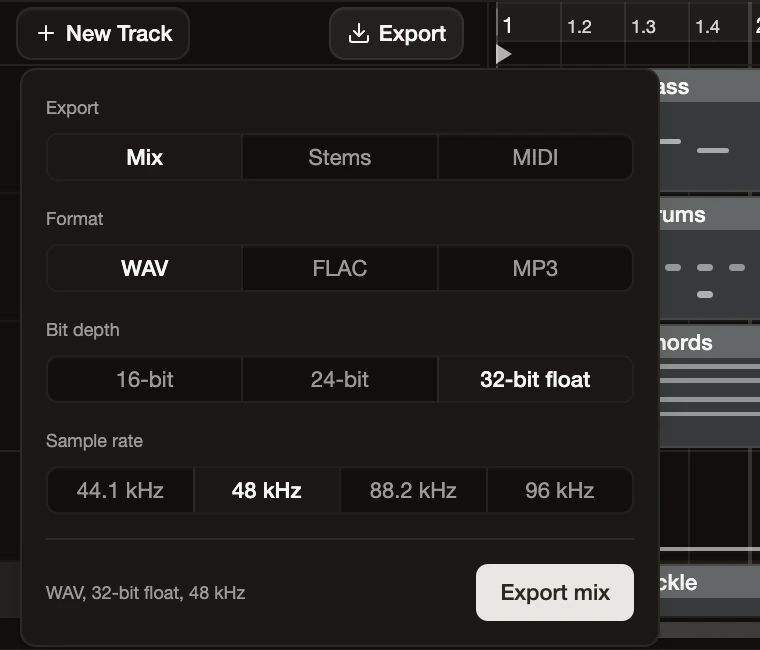
For Mix, Stems, and Bounce track…, the Export panel offers:
- Format — WAV, FLAC, or MP3.
- Bit depth — 16-bit, 24-bit, or 32-bit float for WAV; 16-bit or 24-bit for FLAC.
- Bitrate — 128, 192, 256, or 320 kbps for MP3, which replaces Bit depth.
- Sample rate — 44.1, 48, 88.2, or 96 kHz. MP3 offers 44.1 and 48 kHz only.
Switching format adjusts options that the new format does not support: FLAC moves 32-bit float to 24-bit, and MP3 moves 88.2 or 96 kHz to 48 kHz. A summary line such as WAV, 32-bit float, 48 kHz shows what will be written. Choosing MIDI hides the audio options.
Your choices are saved on this computer and are used by the Export panel, the File menu, track bounces, and agent-requested exports. New installs start at WAV, 32-bit float, 48 kHz. The sample rate here is separate from the playback sample rate in Settings → Audio.
MP3 encoding uses open-source software. Its notices are available from About Sympose Studio → Open-source notices.
Export safely
Exports are staged before their final files are promoted. Canceling before completion does not present a partial result as successful. If the app cannot completely roll back an interrupted write, it reports the remaining files that may require cleanup.
Do not edit or delete required assets while an export is in progress. If the project changes after readiness was established, Sympose stops and asks you to recheck rather than exporting an unintended revision.
After a mix, stem, or bounce export finishes, a notification names the destination. If the audio clipped, it warns you and reports the peak level and how many samples clipped, or which stems clipped. A 32-bit float export that peaks above 0 dB shows a note that it may clip when played back.
Hand off to a DAW
Use MIDI when you want to continue arranging or orchestrating elsewhere. Use stems when you want Sympose’s sound while mixing in another application. Use the final mix for listening or delivery, and the project bundle when you want to preserve the Sympose project itself.
You can also drag a MIDI track from the track list into a DAW or a folder to hand off that track as a .mid file. Audio tracks cannot be dragged out this way; use Bounce track… for them.
For file types and limits, see Formats and system requirements.