

Effects
Build an effects chain, use presets and shared sends, and automate effect parameters.
The Device chain runs from left to right. MIDI passes through its instrument before effects; audio begins at the first effect.
Build an effects chain
Select Add Effect at the end of the chain and choose one of the available effects:
- EQ for low, mid, and high band shaping
- Compressor for punch and consistency
- Distortion for drive and saturation
- Limiter for peak protection
- Chorus for width and gentle modulation, or Flanger for short-delay comb motion (it starts a Chorus effect from a flanging setting)
- Delay for echo repeats
- Reverb for tail length and space
- Filter for resonant tone shaping
Each track holds one of each effect. Adjust an effect’s primary controls, or open its preset menu to apply a factory preset. You can:
- Enable or bypass an effect with the dot in its header
- Reorder effects by dragging their handles
- Remove an effect (Sympose asks you to confirm, because its current settings are lost)
- Apply a factory preset
- Automate supported parameters
Order matters because each effect receives the output of the device before it.
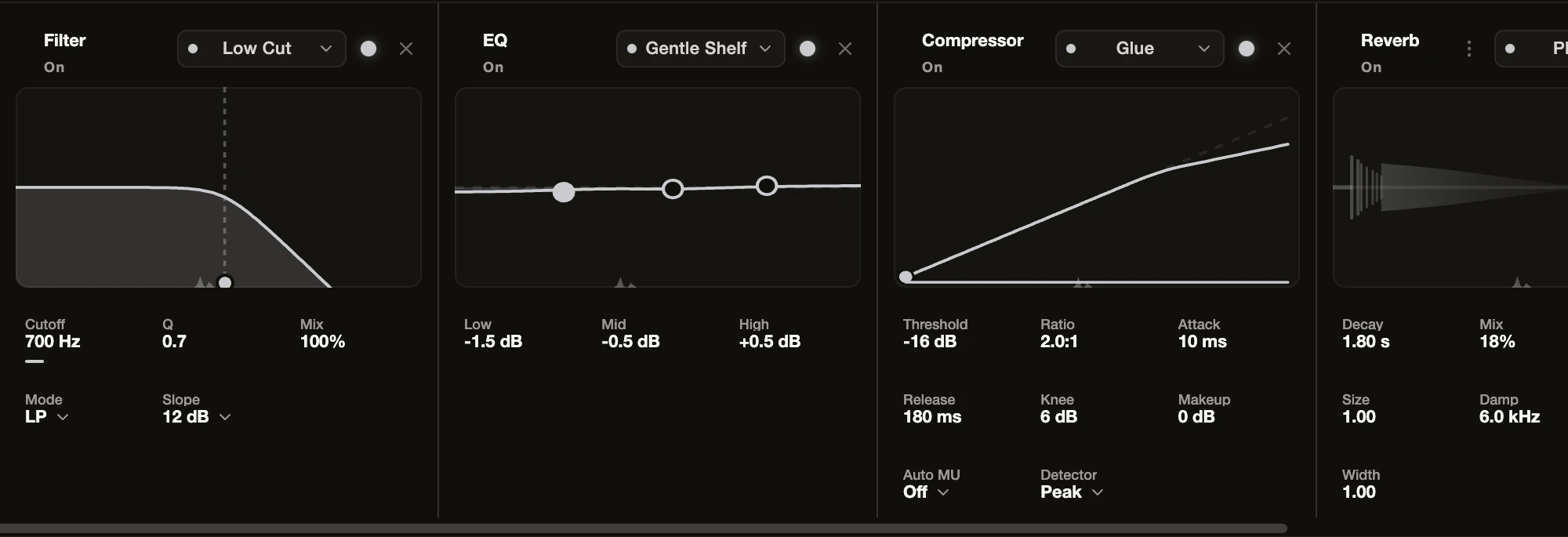
Effect cards draw what the effect is doing: filter and EQ curves, a compressor transfer curve with live gain reduction, a distortion curve, delay echoes, a reverb impulse response, and chorus voices. The Effect spectrum backgrounds and Effect colors settings change how the rack looks; see Settings.
Sends and shared processing
Chorus, Delay, and Reverb can switch from running on the track to a shared bus. Open the effect’s routing menu (the three-dot control in its header) and choose Track or Shared bus. On a shared bus the effect’s blend knob becomes Send, which controls how much of the track reaches the shared effect while the main track path continues. Use sends for treatments such as common space or delay across several tracks.
Automate the mix
Open an automation lane for an eligible effect parameter. See Create and edit automation. Manual and agent-authored automation use the same target definitions, ranges, and timeline.
Ask Sympose for effects
Describe the sound you want and where:
Give the chords some space with a gentle EQ, compressor, and reverb.
Sympose can add, remove, reorder, bypass, and adjust effects, and apply factory presets. Review the result in Device view and in the Changes tab, which lists each changed setting with its before and after value. Select Stop in the composer to cancel a run, and use Revert or Undo turn to go back. See Review and revise agent work.
Continue with Mixing.