

Mixing
Balance tracks, use the Mix view, set the master level, and ask Sympose to measure and adjust levels.
Each track has a volume fader, pan, mute, and solo, both on its row in the track list and as a channel strip in the Mix view. Track effects shape each sound before it reaches the mix; see Effects.
Balance tracks
Use track volume and pan to place sounds in the mix. Volume is shown in dB, with 0 dB marked on the fader; a fader can add a few dB of boost and fade all the way down to silence. Mute silences a track; Solo focuses playback on the soloed tracks. When several tracks are selected, moving a fader or pan control on one of them moves all of the selected tracks by the same amount. Each fader or pan drag is one undo step.
The master fader controls the final project level, from −40 dB (silent) to 0 dB.
Mix view
Choose Mix in the Detail Panel view switcher to see the whole project as channel strips. Mix view replaces Clip and Device view while it is shown. See Keyboard shortcuts for the shortcut.
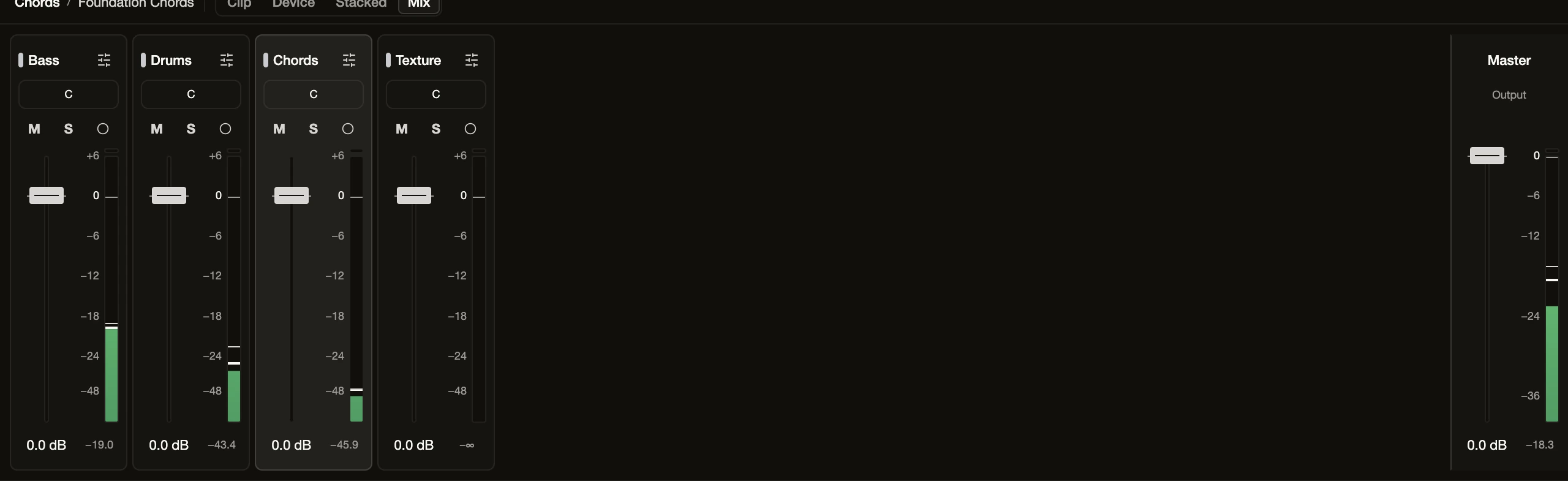
- Each track has a strip with its name, pan, M (mute), S (solo), and record-arm buttons, a vertical volume fader, and a level meter. A marker on a fader or pan control means that parameter has an automation lane.
- Select a strip’s name to select the track (Shift and ⌘/Ctrl select several). Double-click the name, or use the sliders button, to open that track in Device view.
- Double-click a fader to reset it.
- The meter shows the output level and holds its peak. Its readout is the peak level in dBFS; it turns red when the output clipped, and clicking it clears the clip indicator.
- The Master strip on the right has its own fader and meter.
Automate the mix
Track volume and pan can follow an automation lane. See Create and edit automation.
Ask Sympose to mix
Describe the outcome and scope:
Make the drums feel more cohesive, keep the kick impact, and reduce the harshness on the overhead-style layer.
Sympose can inspect the current chain and make structured, reversible changes to effects, track volume and pan, mute and solo, and the master level.
For level, loudness, or balance requests, Sympose can measure the audio, make an edit in dB, and measure again before it stops, then report the before and after numbers. This uses an Inspect audio result for a clip, a track, or the whole mix, with measurements such as peak, true peak, RMS, loudness, and stereo balance, plus frequency bands for the mix. It works while the project is playing, and the number of measurements per request is limited. The result card states that Sympose analyzed the audio and did not hear it.
Those numbers are objective measurements. Audition the result at a matched listening level when possible; the agent does not infer subjective success from transport playback alone.
To inspect what changed, open the Changes tab. To refine, ask a follow-up or move the controls yourself. Select Stop in the composer to cancel a run, and use Revert or Undo turn to go back. See Review and revise agent work.
Finish with Create and edit automation or export the project.