

Runs, questions, and confirmations
Follow a run, send follow-ups while Sympose works, answer questions, confirm destructive changes, and stop a run.
Sympose has one way of working. There is no mode switch in the composer: in any chat you can ask questions, explore ideas, and have Sympose edit the project. Each request you send starts a run, and Sympose uses questions and confirmations to keep you in control at the moments that matter.
Ask, explore, or edit
Sympose decides from your request whether to explain, ask a question, or change the project. If you want discussion only, say so (“don’t change anything yet”). If a change is broad or risky, ask for the approach first, then tell Sympose to go ahead. Nothing in the app enforces a read-only conversation, so state limits in the request and check the Changes tab afterward.
Follow a run
For multi-step work, Sympose keeps a Tasks list above the composer. Each task is marked pending, in progress, completed, or cancelled, and the header counts finished tasks. If you stop a run, the task that was in progress is marked paused. The list is progress information only. It does not approve or authorize anything, and it disappears shortly after the last task completes.
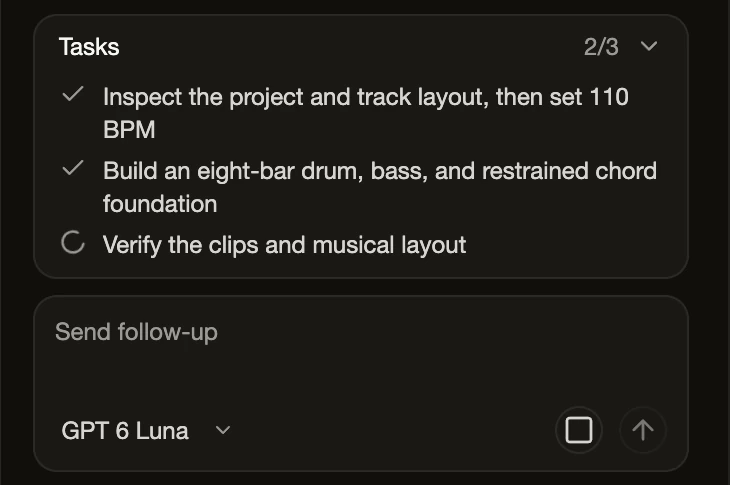
As each step finishes, the transcript adds a summary such as “Edited 5 tracks, 3 clips · explored 3 tracks.” Select it to see the individual steps.
Send follow-ups while Sympose works
The composer stays available during a run, and its hint changes to “Send follow-up.”
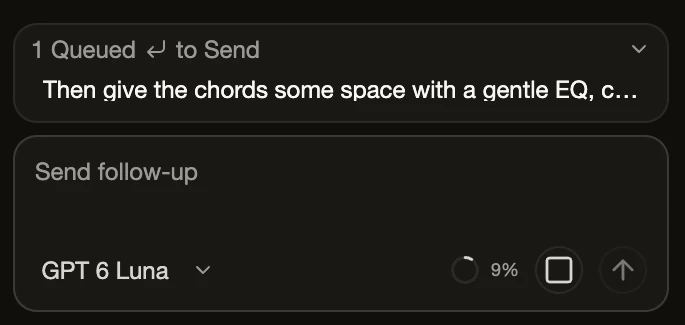
- Enter queues your message. It is sent when the current run finishes.
- Cmd+Enter or Ctrl+Enter steers the current run with your message instead of waiting.
- A queued or steering message appears above the composer. Hover over it to steer it instead, edit it, or remove it before it is delivered.
After a reply, Sympose may offer a few suggested next prompts. Selecting one sends it as your next message.
Answer questions
Sympose may pause for a focused question when your taste, intent, or understanding changes the likely result. A question appears as a card in the chat, with up to three questions labeled “Question 1 of 2” and so on.
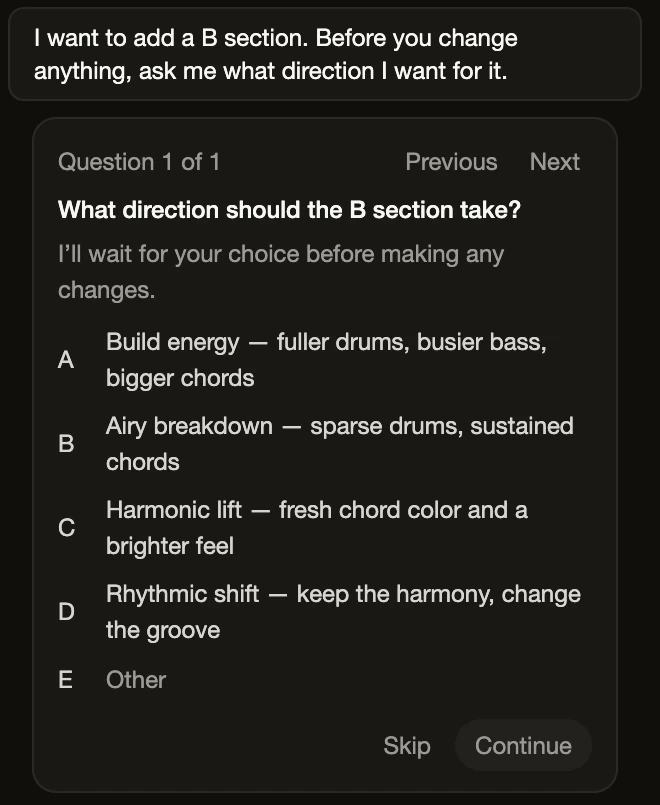
- Choose one of the suggested answers, or type your own in the Other line.
- Use Previous and Next to move between questions, and Clear answer to change your mind.
- Skip a question you do not want to answer.
- Select Continue to send your answers. Sympose waits until you do.
Your answers stay in the chat as “You answered: …” so you can see what Sympose was working from.
Confirm destructive changes
Sympose pauses for confirmation before:
- Deleting one or more tracks.
- Changing the time signature in a way that rewrites existing clips.
The chat shows what would change, with Approve and Reject buttons. Rejecting leaves the project as it was. Other edits are applied right away and can be reviewed and undone afterward from the Changes tab.
Actions that need you
Importing files, starting a recording, and choosing an export destination always wait for your own action. Sympose posts a card in the chat with buttons such as Choose destination, Start, Stop & accept, Discard, or Skip, and nothing happens until you press one. The operating system’s own file picker and permission prompts are always yours to answer.
Stop a run
Select Stop in the composer to cancel the active run. Edits Sympose had already applied stay in the project and appear in the Changes tab, where you can undo them. Any open question or confirmation is canceled, and a stopped run does not continue on its own.
If you open a different project while a run is active, Sympose asks you to confirm because switching cancels it. Choose Stay to keep the run going, or Switch anyway to cancel it and move on. Switching to another chat in the same project does not stop a run.
Continue with Review and revise agent work.