

Review and revise agent work
Follow progress, inspect changes, audition results, edit earlier prompts, and undo agent work.
Each assistant turn that edits the project is the review unit for delegated work. The Changes tab connects your request to the tracks Sympose touched and lets you compare, audition, and undo them.
Follow progress
While Sympose works, the chat shows each step as it happens, such as inspecting a track or editing a clip, and a Tasks list for multi-step work. Results name the affected tracks and clips without exposing private file paths or internal identifiers.
You can keep working while a run continues, and you can switch to another chat in the same project without stopping it. Opening a different project asks you to confirm first, because that cancels active runs.
Inspect the changes
Select Changes in the header (next to Workspace) to open the Changes tab. It reviews edits by turn, with one row per changed track:
- Latest turn shows how many tracks changed, when, and your original request. Select the request to jump back to it in the chat.
- Each track row summarizes what changed. Expand it to see the before and after values for the settings Sympose changed, and for notes, a before and after preview of each affected clip.
- Use the play buttons on a clip preview to audition the before and after versions. When several tracks changed, an arrangement preview lets you audition the whole before and after.
- Older turns are collected under Earlier turns, one expandable entry per turn.
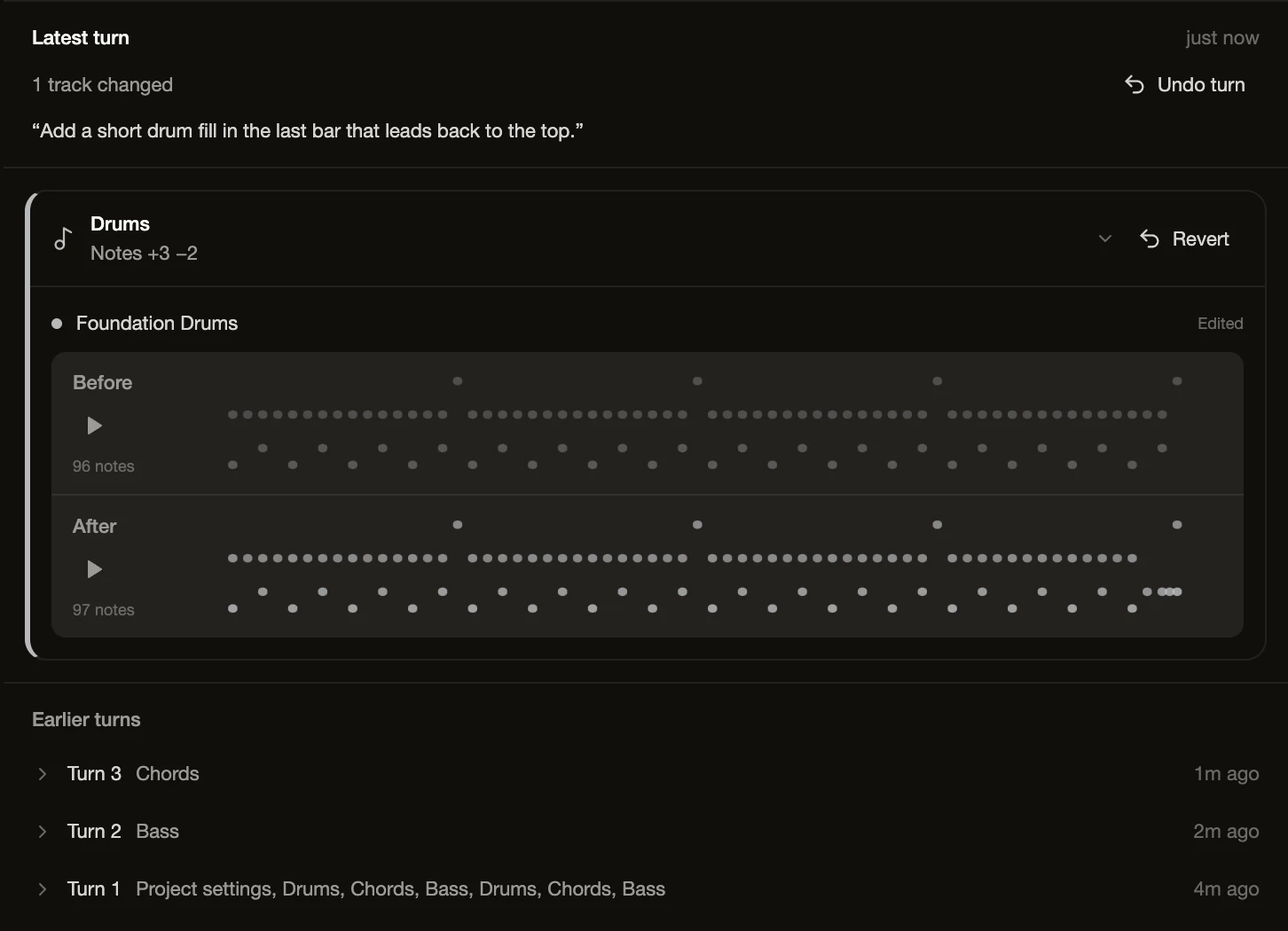
The tab reads “No changes yet” until Sympose has edited the project.
Refine or revert
Agent work applies to the live project; it does not lock manual editing behind a separate preview state. You can:
- Refine the result with a follow-up request
- Edit the affected material directly
- Select Revert on one track row to undo only that track’s changes from the turn
- Select Undo turn to undo everything Sympose changed in that turn
- Edit one of your earlier messages and resend it (see below)
Some changes cannot be undone automatically. When that happens the row says “This change cannot be reverted” and Undo turn is unavailable for the turn.
Some changes can only be undone together with the change that created their track. Suppose Sympose creates several tracks in one step, then chooses an instrument for one of them later in the turn. The instrument row’s Revert is unavailable; expand the row to see “Undo the turn to revert this change.” Select Undo turn to undo both.
If you edited the same material after Sympose did, the row shows “Later edits detected.” Reverting then asks “Force revert?” and lists what would be overwritten. Choose Force revert to overwrite your later edits to those items, or Cancel to leave everything as it is. Unrelated changes are preserved. A Don’t ask again option skips this warning in future.
Edit an earlier message
When the chat is idle, select one of your earlier messages to edit it, then choose Send. Sympose asks “Submit from a previous message?” because sending clears the messages after that point. Choose Revert to also undo Sympose’s changes made after that message, or Don’t revert to keep the project as it is.
Stop and recover
Select Stop in the composer to cancel an active run. Edits already applied stay in the project and in the Changes tab, so you can keep or undo them.
If your connection drops mid-run, Sympose retries automatically and carries on when the connection returns. If you close Sympose or it quits during a run, the run is not continued. Edits that were applied before then remain in your project. Check the Changes tab, then ask Sympose to continue from where it left off.
Questions and confirmations pause the run until you answer, skip, or reject. Stopping the run cancels them. See Runs, questions, and confirmations.
Evidence and artistic judgment
Sympose can report project state and run an explicit audio analysis. It appears in the chat as an Inspect audio result with measurements such as peak, true peak, RMS, and loudness. Those are measurements of the audio signal; they do not mean Sympose listened to the music. Its critique may still be uncertain. Playback alone does not prove that the agent heard the audio, and the final artistic decision remains yours.