

Device view and signal flow
How Device view shows a track's instrument and effects, and how sound flows through them.
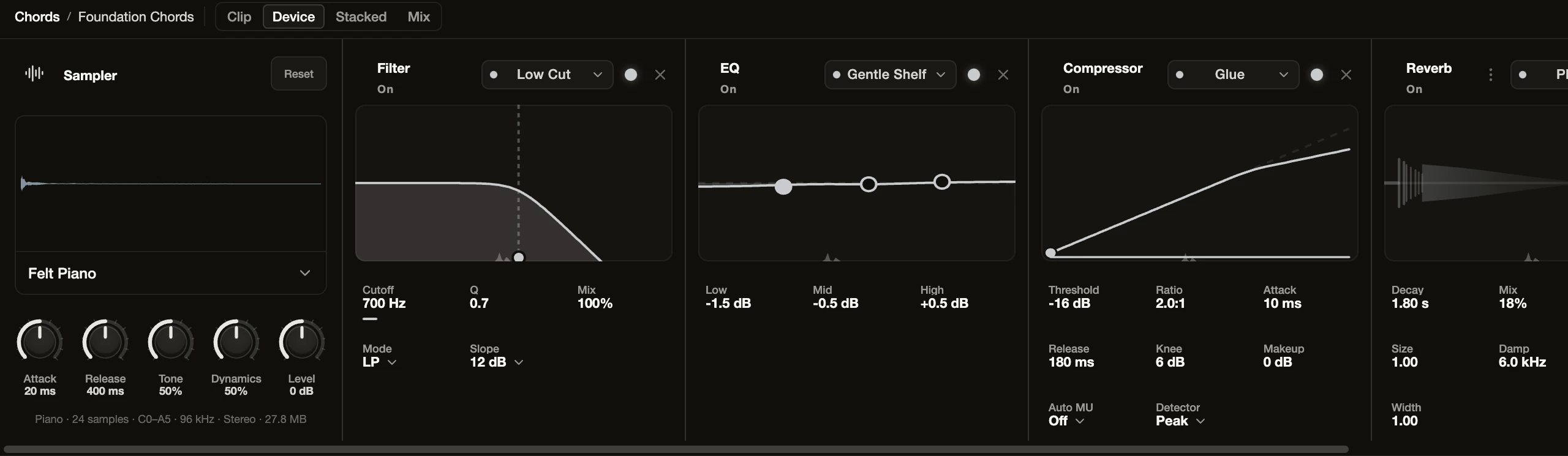
Open Device view to change how the selected track sounds. Choose Device in the Detail Panel header or the View menu, or double-click a track name. Devices flow from left to right.
MIDI tracks
A MIDI track begins with one instrument source, shown as one of three device types:
- Synth is the Sympose synthesizer.
- Sampler plays a recorded instrument such as a piano or strings.
- Drums is a drum kit with a pad grid.
Select the instrument name to browse and change the sound, or use the instrument picker on the track row. Reset in the device header returns the device to its defaults, and asks first if that would discard your changes. Effects follow the instrument. The notes in the clip decide what is played; the Device chain decides how it sounds.
Audio tracks
An audio track already contains recorded or imported sound, so its chain begins with effects. It never displays an empty instrument slot. An audio track with no effects shows an empty rack with an Add Effect button.
Effects
Effects process the signal in order. Select Add Effect at the end of the chain to add one, drag a card by its title to reorder it, use the round power button on a card to bypass or re-enable it, and use the X to remove it (Sympose asks you to confirm). Each card shows its main controls up front, and many have a preset menu. See Effects.
Presets
Factory presets provide dependable starting points. For Synth sounds, Save in the Synth header stores your own user preset on this computer so you can reuse it in any project; user presets are not available for Sampler or Drums. Sample-backed presets may depend on locally available assets. If a project’s downloaded instrument is missing, Sympose tells you the track will be silent and offers to download it instead of substituting another sound.
Work directly or with Sympose
You can adjust a parameter yourself or describe a result to Sympose, such as “make this pad darker and wider.” Agent-authored device work uses the same project state and remains attributable and reversible: the Changes tab lists it by turn, and you can Revert a track’s changes or Undo turn, or press Stop in the composer to cancel a run in progress.
For detail, see Instruments and presets, Design sounds with Synth, Effects, and Mixing.